
Introduction
A List view is a view for displaying a collection of data in a scrollable container. In this lesson, we will limit ourselves to discussing the most important features of the List view. In subsequent lessons, we will delve deeper into the use of the List view in practical situations.
A standard List view
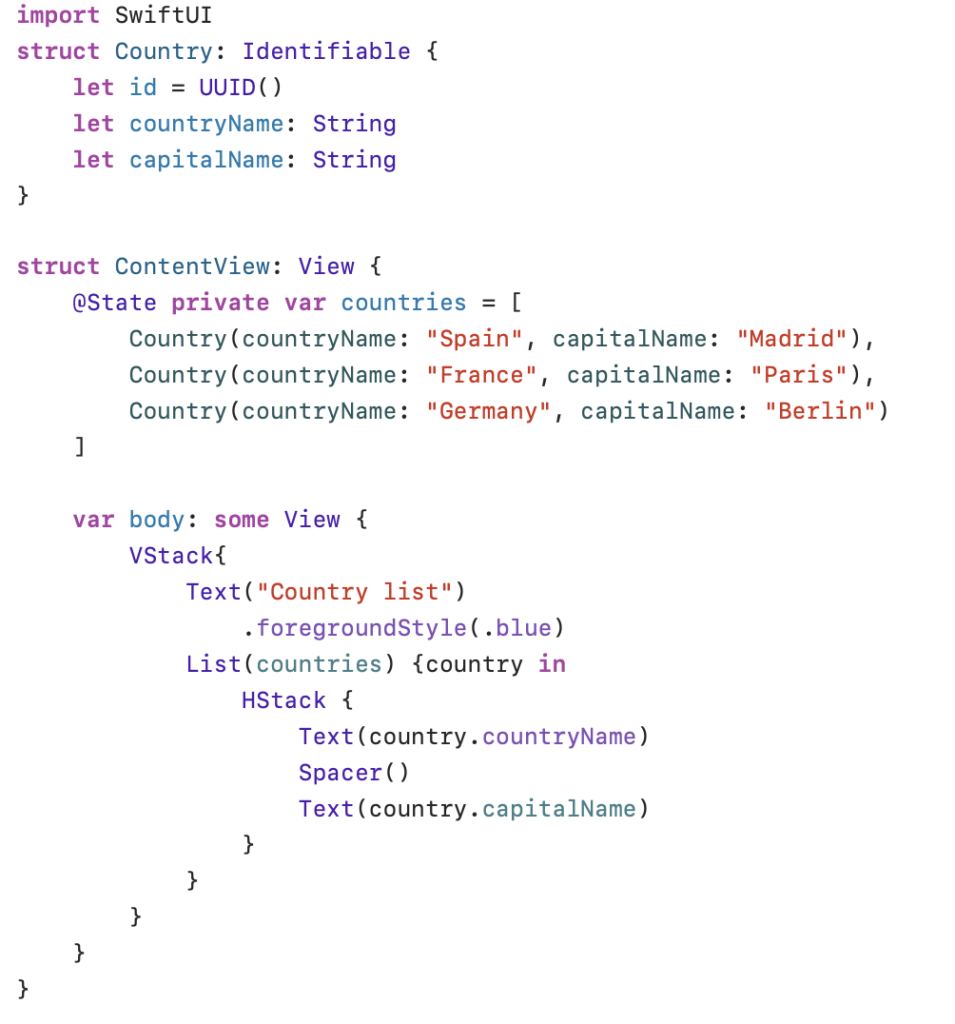
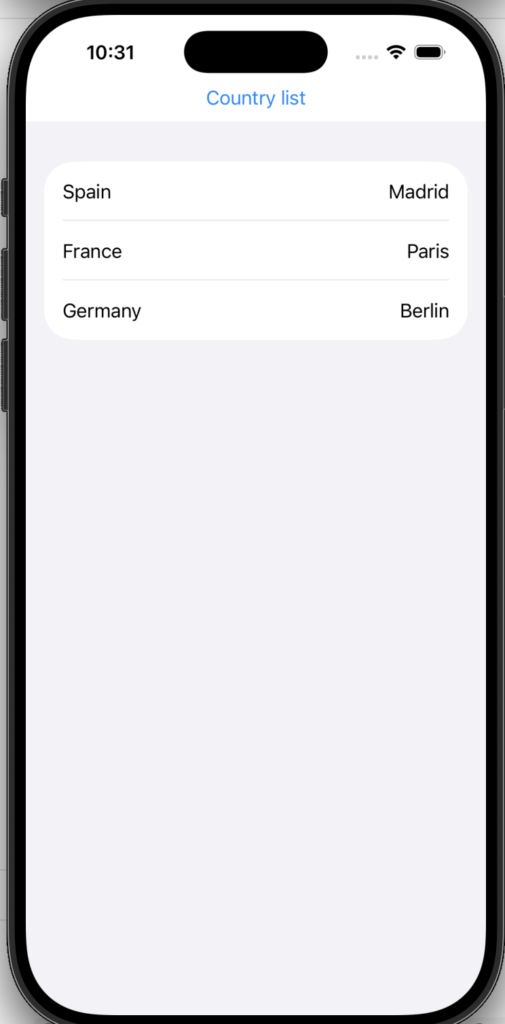
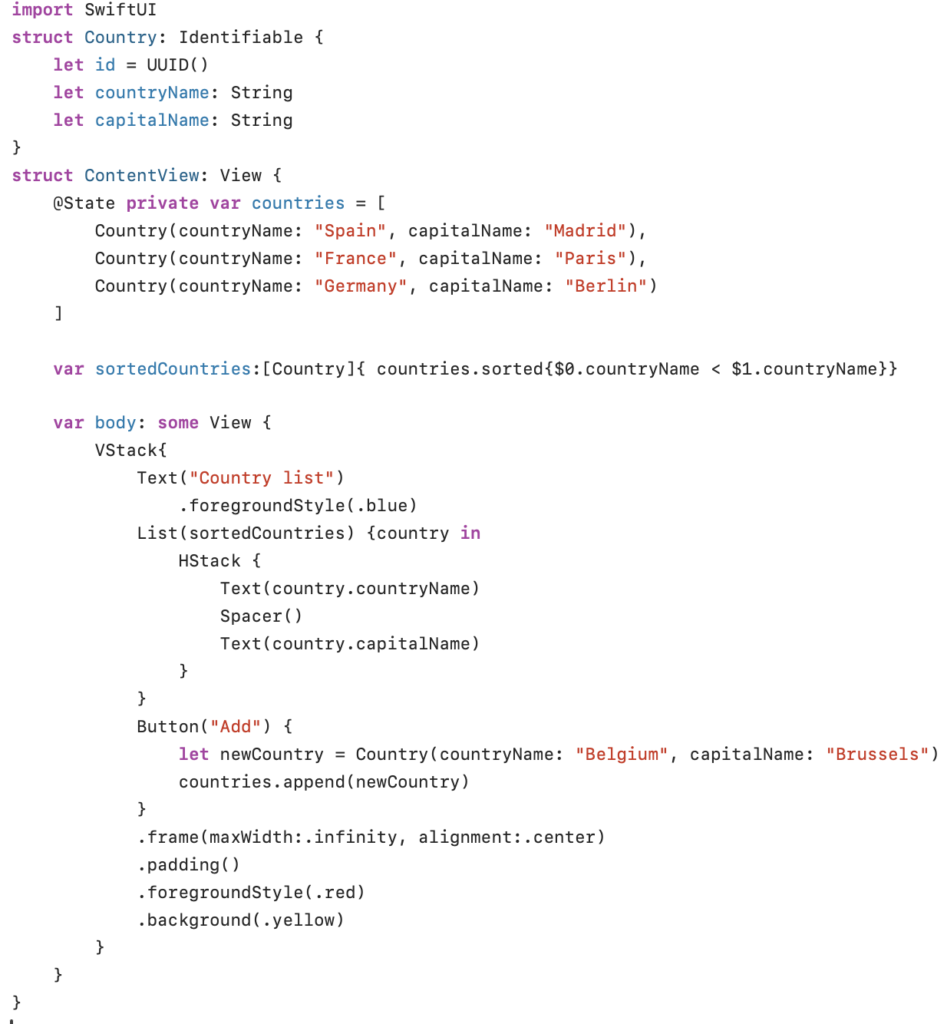
The Array named countries contains three elements of the structure Country. In the structure named Country, the id property gets a unique value from UUID(). This guarantees that the structure Country is Identifiable. In the List view, constructed using the statement List(countries) {country in…}, each country is displayed in a separate row. Each row is made up of two elements (countryName and capitalName) contained in an HStack.
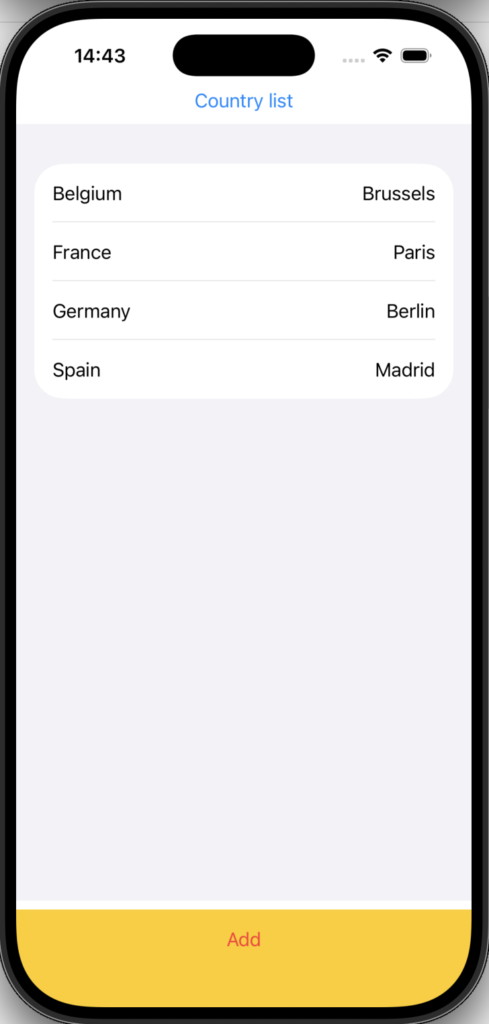
Please note: the Text("Country list") (first element of the VStack) is not displayed above the List view, but in the scroll area at the top of the screen. A scrollableListview occupies all available space, with the exception of the safe zones at the top and bottom of the screen. If you want to add a button to the VStack, the button will not be placed directly after the List view, but in the safe area at the bottom of the screen.
In this example, the variable countries is declared as an @State variable. You will understand that this is absolutely not necessary. I have only added this to make this program compatible with the programs that follow later.
A sorted List view
Now, it is very simple to sort the data in the List view based on the data stored in the Array:
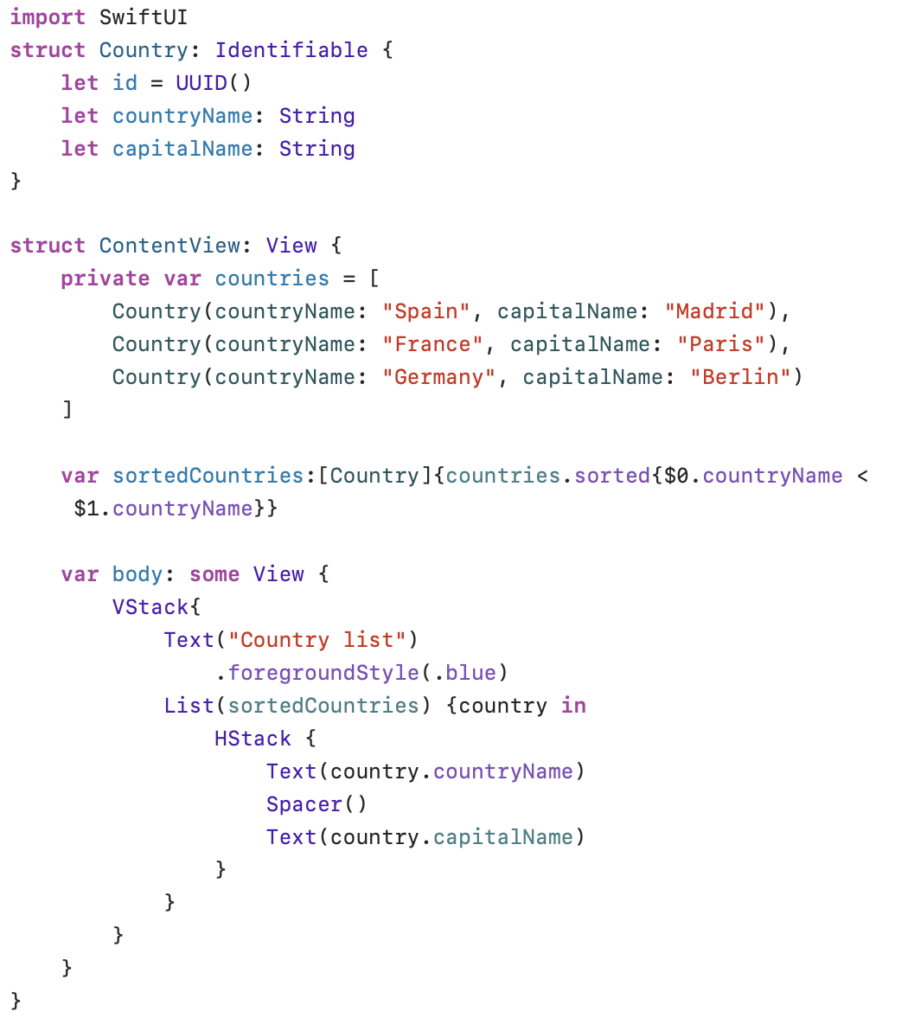
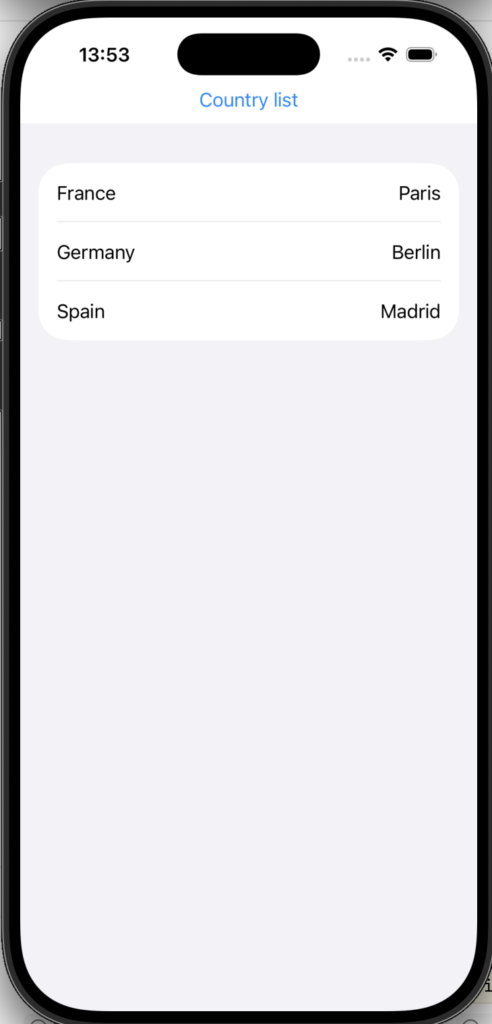
The variable sortedCountries is an Array of countries sorted on the property countryName. The sortedCountries array is used to display the country names in the List in ascending alphabetical order.
Add an element to the List view
I have created a Button to add a new country to our List. The Button has a label (Add) and an action to be performed when the button is pressed. The action first creates a new instance (newCountry) of the Country structure and appends this new instance to the countries Array (countries.append(newCountry)).
Note that the Button is automatically placed at the bottom of the screen (in the safe zone).
An @State variable countries is now required: otherwise SwiftUI will not allow this property to be changed.