
Introduction
In this lesson, we explain the basic structure of a SwiftUI app. To do this, we use the default code that is generated after you select Create New App on the Apple Playground home screen. If you use Xcode, you will see the same Welcome screen, but you must first define some characteristics of the project. Let’s leave Xcode aside for now. Apple Playground offers sufficient resources to learn the basics of SwiftUI.
The Hello World app
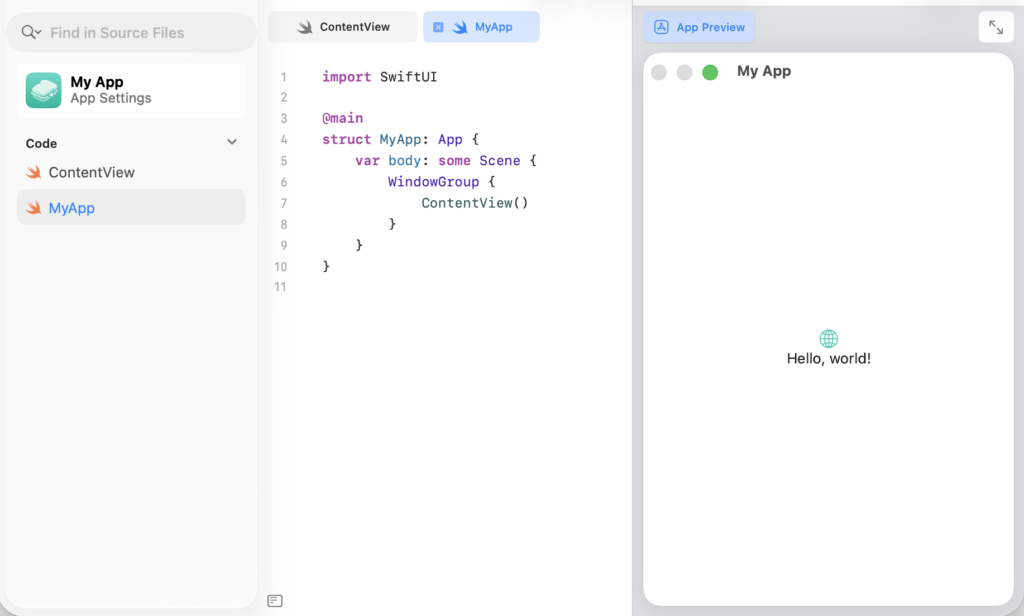
On the left side of the screen, you will find an overview of the Swift files (MyApp and ContentView) used in this application.
In the middle of the screen, you will find the SwiftUI code associated with the Swift file selected in the left panel.
On the right side of the screen, you get a preview of the actual application.
But first, let’s take a look at the code.
MyApp file
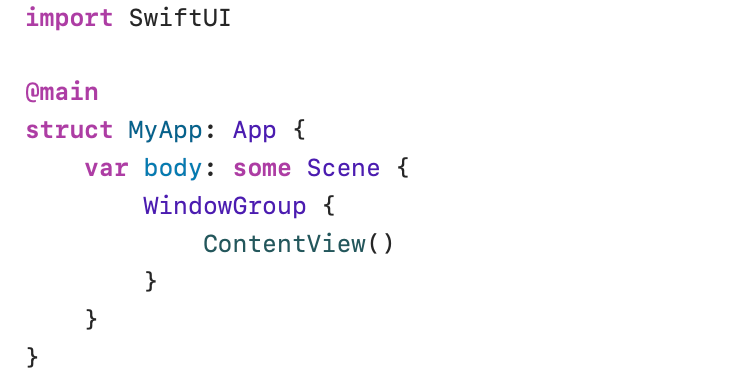
The MyApp application file first imports the SwiftUI framework (import SwiftUI). This is followed by @main. @main is the starting point of the application. Every SwiftUI application has only one @main entry point. @main will start a hidden main() function. The main() function opens the main screen.
The MyApp struct conforms to the App protocol (struct MyApp: App). The App protocol requires the definition of a body property. In the MyApp code the body property refers to some Scene (var body: some Scene).
A SwiftUI protocol defines rules, properties, and methods that a struct, enum, etc., must satisfy to comply with this protocol. The App protocol, for example, requires the definition of a body property.
In this case, body must comply with the rules imposed by the Scene protocol. The keyword some indicates that the technical details are unimportant. In short, the statement var body: some Scene tells the compiler that the statements within the body parentheses deliver a Scene that complies with the Scene protocol.
A Scene forms the intermediate layer between the user interface and the operating system (iOS, appleOS, macOS, etc.). A Scene determines how the user interface is displayed on the underlying operating system. After all, an iPhone with iOS will have to display a complex user interface differently than on the larger screens available on an iMac. A scene solves this problem.
WindowGroup is one of the built-in scenes that complies with the Scene protocol. WindowGroup is a container that manages one or more independent windows that share the same view hierarchy. In MyApp, the WindowGroup Scene represents the main window.
The statement ContentView() tells the app to load and display the ContentView struct in the main window managed by WindowGroup. ContentView() creates a new instance of the struct ContentView defined in the SwiftUI ContentView file. The ContentView structure contains the SwiftUI elements (text, buttons, drop-down lists, etc.) with which the user interface is built.
The name of the struct ContentView can be changed. The SwiftUI developer can use names like DetailView or MainViewor something else. But don’t forget to modify the call to this structure in the MyApp file.
ContentView file
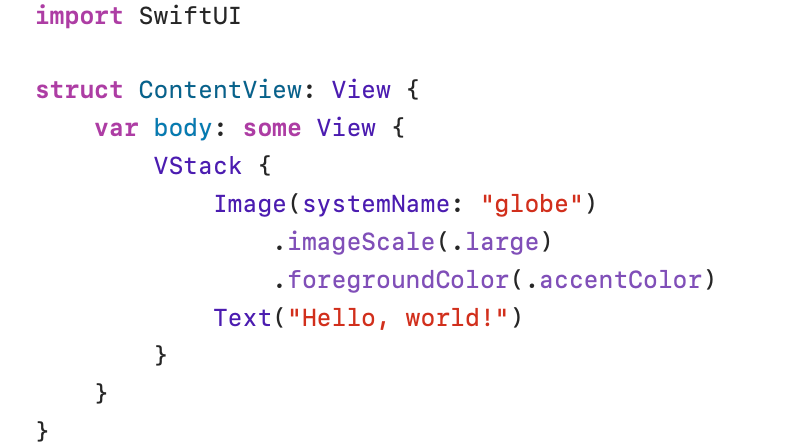
The ContentView struct conforms to the View protocol. The View protocol requires the definition of a body property. The body property complies with the View protocol, but again, the technical details are not important (var body: some View). A View contains the hierarchy of SwiftUI elements used to style the interface. In the example, the View defines a VStack consisting of an Image and a Text element. VStack (vertical stack) will display the elements Image and Text vertically (Image on top of Text).
The remaining lines in the code are modifiers (the modifiers .imageScale and .foregroundColor) that change the appearance of an element. These modifiers will be explained in one of the next lessons.
Views contain the elements to build up the user interface. Views are rendered by a Scene on the device (iPhone, iMac, etc.) being used. Together with the operating system, a scene determines how views are displayed and managed.